MenuTrim – Free Context Menu Editor for Windows 11 & 10
Clean up your right-click menu, remove junk left by uninstalled apps, add your own shortcuts, and restore the classic Windows menu — in a few clicks, with a backup of every change.
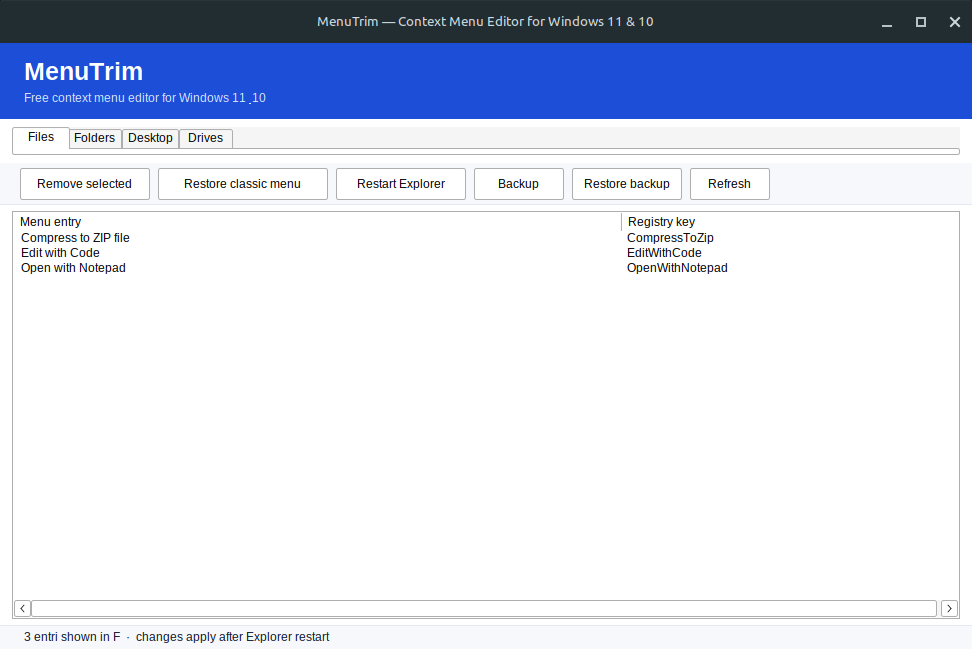
Everything you need to control the Windows right-click menu
The Windows context menu fills up with entries you never use. MenuTrim lets you delete them, add your own, and undo mistakes — without editing the registry by hand.
Remove right-click clutter
Delete unused entries added by old or uninstalled programs in a few clicks, with a safety backup before every change.
Add your own entries
Add a program, folder, or command to the right-click menu so your most-used tools are one click away.
Backup & restore
Every edit is saved as a restorable snapshot. Undo any change or roll back the entire menu to a previous state.
Restore the classic menu
Bring back the full Windows 10-style right-click menu on Windows 11 with a single toggle.
Portable, no install
A single small EXE you can run from any folder or USB stick. Nothing is installed and nothing runs in the background.
Free & open source
MIT-licensed, ad-free, and bundle-free. The full source is on GitHub so you can verify exactly what it does.
How it works
Three steps from cluttered menu to a clean, personalized right-click.
-
Download and run
Download the portable ZIP, extract it, and double-click MenuTrim.exe. No installation, no admin rights needed for viewing.
-
Clean up your menu
Select the entries you want to remove or add new ones for your favorite programs and commands. MenuTrim saves a backup automatically.
-
Apply and enjoy
Click Apply. Your new right-click menu is live instantly — and any change can be undone from the Backups tab.
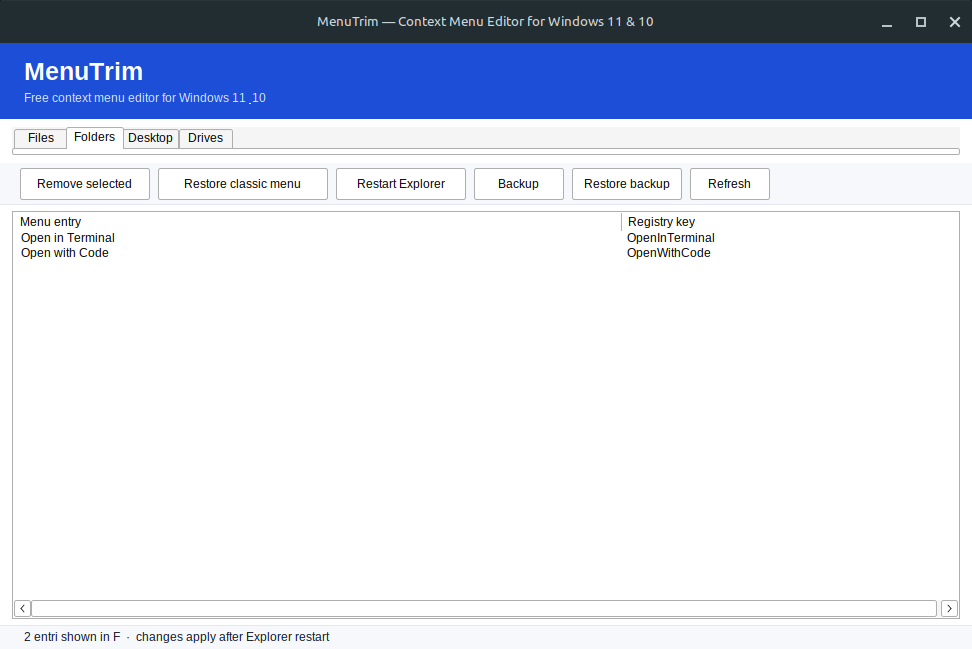
Screenshots
A quick look at MenuTrim in action.
Frequently asked questions
Is MenuTrim safe to use?
Yes. MenuTrim is open source (MIT license), so the full source code is public on GitHub. It is ad-free, contains no bundled software, and every change you make is backed up first so it can be undone. You can also verify the download with the published SHA-256 checksum.
Does MenuTrim work on Windows 11?
Yes. MenuTrim works on Windows 11 and Windows 10 (64-bit). On Windows 11 it can also restore the classic, full right-click menu instead of the compressed “Show more options” menu.
Do I need to install MenuTrim?
No. MenuTrim is a portable application. Download the ZIP, extract it, and run the EXE. You can delete it at any time — it leaves nothing behind.
Can I undo a change if something goes wrong?
Yes. Before applying any change, MenuTrim automatically saves a backup of your current context menu. If you remove the wrong item, you can restore it from the Backups tab or roll back the entire menu.
Will removing context menu items break my programs?
No. Removing a right-click entry only removes the menu item — it does not uninstall or damage the program. The program keeps working normally and its menu entry can be restored from a backup.
Is MenuTrim really free?
Yes. MenuTrim is 100% free with no paid version, no ads, and no in-app purchases. If you find it useful you can star the GitHub repository.
Safe, transparent, and genuinely free
No ads, no bundled software, no telemetry. Just a tool that does one job well.
- Open source under the MIT license — read the full source code on GitHub.
- No installer, no bundled offers, no browser toolbars. One portable EXE.
- Every change is backed up first, so you can always undo it.
- Verify your download with the published SHA-256 checksum.
- Scan the file yourself on VirusTotal before running it.
Learn to master the Windows right-click menu
Step-by-step guides — with MenuTrim as the easy way, and manual registry methods as the alternative.
How to Remove Items from the Right-Click Menu in Windows 11
Step-by-step guide to removing right-click menu items in Windows 11 with MenuTrim, or manually with the registry. Includes safe backup steps.
Read the guide →
How to Add a Program to the Right-Click Menu in Windows
Add any program, app, or command to the Windows 10 and 11 right-click menu. Easy MenuTrim method plus a manual registry method with full steps.
Read the guide →
How to Restore the Old (Classic) Context Menu in Windows 11
Bring back the full Windows 10 right-click menu in Windows 11. One-click MenuTrim toggle plus a registry method and a command-line method.
Read the guide →
How to Edit the Context Menu with the Registry (Safely)
A safe, beginner-friendly guide to editing Windows context menu registry keys — with the exact paths for files, folders, and desktop right-click menus.
Read the guide →
Take back your right-click menu
Download MenuTrim, remove the clutter, and make Windows work the way you want it to.