How to Add a Program to the Right-Click Menu in Windows
To add a program to the right-click menu in Windows, create a new registry key under
HKEY_CLASSES_ROOT\*\shell named after your menu entry, then add a
command subkey whose (Default) value is the program path followed by
"%1". If you'd rather not touch the registry by hand, MenuTrim does it for you
through a simple dialog in a few clicks.
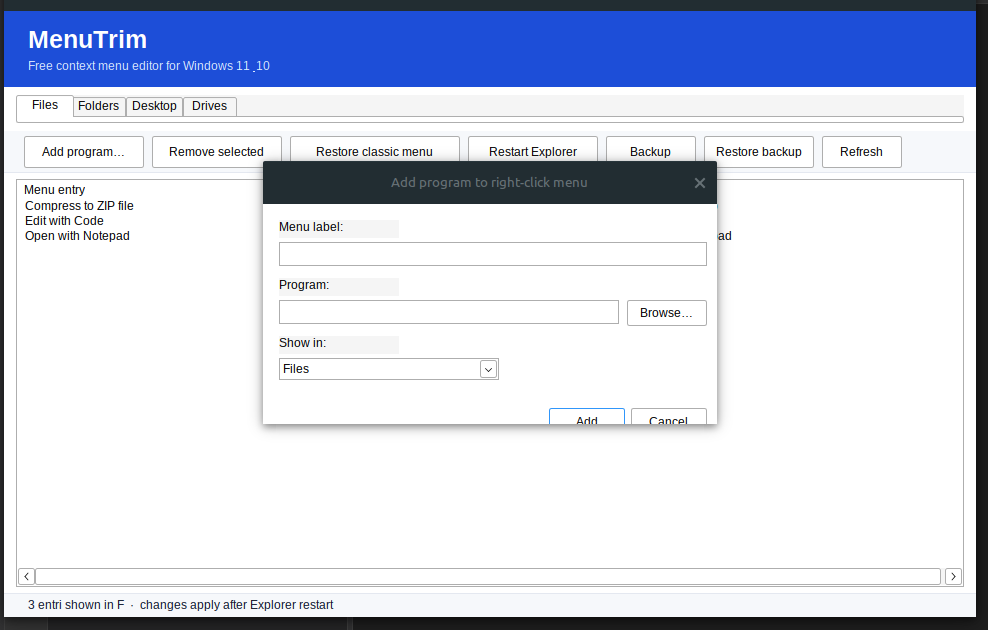
Fastest way: download MenuTrim, open Add program…, browse to the EXE, type a label, and click Add.
Method 1: Add a program with MenuTrim (recommended)
- Download MenuTrim and run the portable EXE.
- Click Add program… in the toolbar.
- Choose where the entry should appear — Files, Folders, Desktop background, or Drives.
- Type a label such as Open with MyApp and click Browse… to pick the program's
.exefile. - Click Add, then Restart Explorer. Right-click any file to see your new entry.
Method 2: Add a program with the Registry Editor
- Press Windows + R, type
regedit, and press Enter. - Navigate to
HKEY_CLASSES_ROOT\*\shell. - Right-click
shelland choose New → Key. Name it the label you want, for exampleOpenWithMyApp. - Select the new key. In the right pane, double-click
(Default)and set it to the label that should appear in the menu, such as Open with MyApp. - Right-click your new key and choose New → Key. Name it
command. - Select
command, double-click(Default), and set it to:
Replace the path with your program's real location, including the quotes."C:\Tools\myapp.exe" "%1" - Restart Explorer or sign out and back in. Your entry now appears when you right-click a file.
For folders, use HKEY_CLASSES_ROOT\Directory\shell with "%1" (or
"%V"). For the desktop background menu, use
HKEY_CLASSES_ROOT\Directory\background\shell and omit the "%1"
argument, since no file is selected.
Optional: add an icon to your menu entry
To give your entry an icon, add a String Value named Icon to the key you
created and set it to the program's path (for example C:\Tools\myapp.exe,0). The
,0 selects the first icon stored in the executable.
Related guides
- How to remove items from the right-click menu in Windows 11
- How to edit the context menu with the registry (safely)
- How to restore the old context menu in Windows 11
Adding programs to the right-click menu — FAQ
Can I add any program to the right-click menu?
Yes. Any executable, shortcut, or command can be added to the file, folder, or desktop right-click menu. The menu entry simply runs a command, so it works with any program that launches from a command line.
What does "%1" mean in a registry command value?
It is a placeholder for the selected file. When you right-click a file and choose your menu item, Windows replaces %1 with the full path of that file and passes it to the program.
How do I add a menu item to the desktop (background) right-click?
Use the key HKEY_CLASSES_ROOT\Directory\background\shell. Create your entry there with a command subkey, but omit the %1 argument since no file is selected when you right-click empty desktop space.