How to Remove Items from the Right-Click Menu in Windows 11
To remove an item from the right-click menu in Windows 11, open the registry key
HKEY_CLASSES_ROOT\*\shell, find the folder named after the entry you want to
remove, and delete it. The easiest way is to use a free context menu editor such as MenuTrim,
which lists every entry in a simple table and removes it with one click — including a backup
you can restore if anything goes wrong.
Short on time? Download MenuTrim (free, portable), open it, select the entry you don't want, and click Remove. Your menu is backed up automatically.
Method 1: Remove items with MenuTrim (recommended)
- Download MenuTrim and extract the ZIP.
- Run
MenuTrim.exe. You'll see a list of the entries in your right-click menu. - Find the entry you want to remove — for example, an item left behind by an uninstalled app.
- Select it and click Remove selected. MenuTrim saves a
.regbackup first. - Click Restart Explorer (or restart it yourself). The entry disappears from your menu.
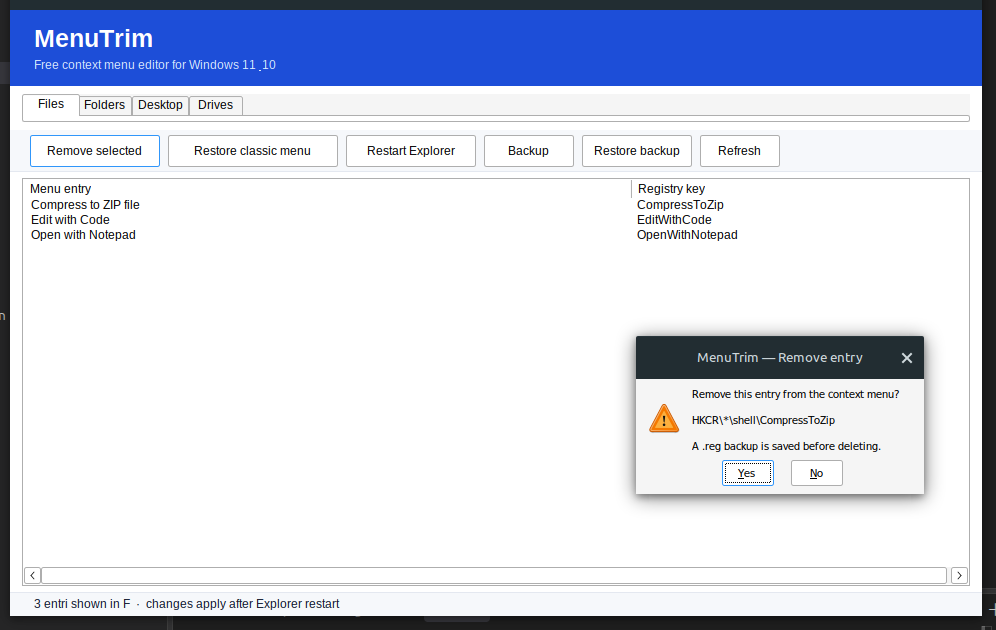
If you remove the wrong item, click Restore backup to reload the latest
snapshot — or double-click any .reg file in the backups\ folder.
No manual registry editing needed.
Method 2: Remove items with the Registry Editor
Back up first. Before deleting anything, right-click the key you're about to
edit in the left pane and choose Export to save a .reg file. That
file is your undo button.
- Press Windows + R, type
regedit, and press Enter. - Navigate to the key for the kind of menu you want to edit:
- File right-click menu:
HKEY_CLASSES_ROOT\*\shell - Folder right-click menu:
HKEY_CLASSES_ROOT\Directory\shell - Desktop/background right-click menu:
HKEY_CLASSES_ROOT\Directory\background\shell
- File right-click menu:
- Each entry is a subfolder under
shell. Click a folder to see its name in the(Default)value on the right. - Right-click the folder for the entry you want to remove and choose Delete.
- Restart Explorer (or sign out and back in) to see the change.
Why some Windows 11 menu items can't be removed
Windows 11 has two menus: a compact new menu and the older "Show more options" menu. Some
entries in the compact menu come from Microsoft Store apps and don't use the classic
shell keys, so they can't be deleted in the registry. Those can usually only be
removed from inside the app's own settings, or by disabling the app entirely.
Related guides
- How to add a program to the right-click menu
- How to restore the old context menu in Windows 11
- How to edit the context menu with the registry (safely)
Removing right-click menu items — FAQ
Is it safe to delete right-click menu items?
Yes. A context menu entry is just a shortcut record in the registry. Removing it does not uninstall the program. To stay safe, back up the registry key or use MenuTrim, which creates a backup automatically before every change.
Why can't I remove some Windows 11 menu items?
The compact Windows 11 menu is partly controlled by the system and by packaged (Store) apps. Items such as "Open with" and built-in app entries may not appear as simple registry keys and usually cannot be removed from the classic shell key alone.
What if a program's menu entry keeps coming back?
If an app is still installed, it may re-add its entry when it updates or runs. Uninstall the app first, then remove the leftover entry. MenuTrim can also disable an entry instead of deleting it, so it stays hidden even if the app tries to restore it.